Set up Google Analytics 4 for your nonprofit in one session. Covers GA4 property setup, conversion tracking, key reports, and the free Google tools stack
Your nonprofit's website gets visitors every day. Some donate. Most don't. Google Analytics 4 (GA4), Google's free measurement platform, tells you exactly where those visitors come from, what they do on your site, and where you lose them before they give. For nonprofits running a Google Ad Grant (worth up to $10,000/month in free search advertising), a correctly configured GA4 setup isn't optional: Google requires at least one tracked conversion per month or your grant account deactivates. This guide walks you through everything, step by step, with no technical background assumed.
Why Google Analytics 4 Matters for Your Nonprofit
Most nonprofit websites generate a lot of traffic and very little insight. Per the M+R Benchmarks 2026 study, the average nonprofit website generates just $1.33 in revenue per visitor. Only 1.6% of visitors donate. That gap between traffic and action is exactly what GA4 helps you close.
The first thing to understand: Universal Analytics (UA), the previous version of Google Analytics, was permanently shut down on July 1, 2024, and all historical UA data was deleted. If your organisation hasn't actively configured a GA4 property, or if you're relying on a property Google auto-created during its 2023 migration, you may have a tracking setup that isn't correctly measuring anything. Many nonprofits don't know this until they try to pull a report.
GA4 is a complete rebuild. It's event-based rather than session-based, which means every click, scroll, form submission, and donation is captured as an individual action, giving you a much clearer picture of the donor journey. It also doesn't store IP addresses by default, making it a more privacy-respecting measurement tool than its predecessor.
There's a second, urgent reason to get this right: Google Ad Grants compliance. Google Ad Grants, which provides eligible nonprofits with up to $10,000/month (approximately ₹8.5 lakh) in free Google Search advertising, requires all accounts to record at least one meaningful conversion per month. Accounts that fall below a 5% click-through rate (CTR: the percentage of people who see your ad and click it) for two consecutive months are deactivated. Without conversion tracking in GA4 linked to your Ad Grants account, you can't prove compliance, and you risk losing the grant entirely.
Research by D4NP shows that 83% of Indian NGOs don't use free digital ad grants, forfeiting approximately ₹1 crore per year. This pattern holds globally: most eligible nonprofits either don't know they qualify, or have never set up the measurement infrastructure to activate and sustain the grant. GA4 is that infrastructure. Learn more about activating your grant on ourGoogle for Nonprofits page.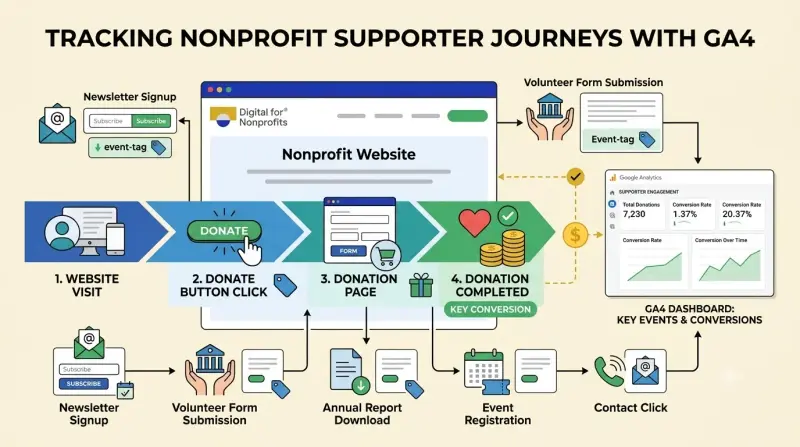
How to Set Up GA4 for Your Nonprofit: Step by Step
This setup takes roughly 60 to 90 minutes for a standard nonprofit website. Work through each step in order.
Step 1: Create Your GA4 Property
Go toanalytics.google.com and sign in with your organisation's Google account (not a personal Gmail). Under Admin, click Create Account and name it after your organisation. Then create a Property, set your time zone and currency (these live at property level in GA4, not inside individual reports), and choose your industry category.
When prompted to select a business objective, choose "Generate more leads", which gives you the most relevant default reports for a nonprofit's goals. Once the property is created, you'll be prompted to add a data stream. Select Web, enter your website URL, and name the stream (something like "Main site"). Enable Enhanced Measurement, which automatically tracks scrolls, outbound clicks, file downloads, and site search without any extra code.
Your Measurement ID will appear in the format G-XXXXXXXX. Save it. You'll need it in the next step.
Step 2: Install Your Tracking Tag
Google Tag Manager (GTM) is the recommended installation method for most nonprofits. GTM is a free tag management platform that lets your team add, update, and manage tracking tags on your website without touching the site's code each time. Install the GTM container snippet on your website once, then manage everything from the GTM dashboard going forward.
In GTM, create a new GA4 Configuration tag, enter your Measurement ID, and set the trigger to All Pages. Publish the container. Your GA4 tracking will go live within minutes.
If GTM isn't an option, you can paste the GA4 tracking code directly into the <head> section of every page on your site. Most CMS platforms (WordPress, Wix, Squarespace, Drupal) have a dedicated field for header scripts in their settings, so this doesn't require editing raw code.
Step 3: Configure Your Day-One Settings
Creating the property and installing the tag is just the start. These six settings should be configured before you rely on any data:
1. Data retention: Under Admin > Data settings > Data retention, change the default from 2 months to 14 months. GA4's Explorations (custom reports) and audience features only work with data within the retention window. At 2 months, you lose year-over-year comparisons before you even know you needed them.
2. Internal traffic filter: Under Admin > Data streams > Configure tag settings > Define internal traffic, enter your office IP address (or range) so that staff browsing the site doesn't inflate your engagement numbers. Then go to Admin > Data settings > Data filters to activate the filter.
3. Cross-domain tracking: If your donation page lives on a subdomain (donate.yourorg.org) or is hosted by a third-party platform like Donorbox, Classy, or Fundraise Up, you must configure cross-domain tracking. Without it, your donation-platform domain appears as a referral source in GA4, breaking attribution and making it look like your donors came from PayPal rather than your Google Ad.
4. List unwanted referrals: In the same tag settings area, add PayPal, Stripe, and any donation vendor domains to the unwanted referrals list. This prevents payment processors from overwriting your original campaign attribution.
5. Google signals: Turn this on under Admin > Data settings > Data collection. It enables cross-device reporting, demographic data, and remarketing audiences. These are useful for understanding whether your Ad Grants campaigns are reaching new or returning supporters.
6. BigQuery export: Link your GA4 property to Google BigQuery (free tier). This exports raw, unsampled event-level data to BigQuery daily, serving as your permanent backup beyond GA4's 14-month interface limit. It's free to set up and takes under five minutes.
Step 4: Verify That Tracking Is Working
Before building any reports, confirm the tracking is actually firing. Open your website in a new browser tab, then go to GA4 and click Reports > Realtime. You should see yourself appear within 10 to 15 seconds as an active user. If you don't, the tag isn't installed correctly.
For deeper verification, use DebugView (Admin > DebugView). Install the free Google Analytics Debugger extension for Chrome, then browse your site. DebugView shows every event firing in real time, including the parameters attached to each one. This is where you confirm that a test donation fires a purchase event with value, currency, and transaction_id all populated correctly. DebugView is also the first place to look when a conversion isn't appearing in your reports.
Setting Up Conversion Tracking for Your Nonprofit
In GA4, every action a user takes on your website is an event. A pageview is an event. A scroll is an event. A donation is an event. Conversion tracking means identifying the events that actually matter to your mission and flagging them so GA4 and Google Ads know to count them as meaningful outcomes.
Google replaced the old "Goals" system with key events in 2024. The setup is simple: once an event is firing correctly in GA4, go to Admin > Events, find the event in the list, and toggle "Mark as key event." It will now appear in your conversion reports and can be imported into Google Ads.
Here are the conversions every nonprofit should consider tracking:
Recommended conversion events for nonprofits in GA4.
A note on the purchase event: GA4 has a set of recommended events with predefined names, and purchase is the one to use for donations, not a custom name. Using the recommended name means the Monetisation report in GA4 populates automatically with donation revenue, average gift size, and transaction-level detail. To trigger it correctly, the event must pass three parameters: value (the donation amount), currency (the ISO code, e.g. USD or INR), and transaction_id (a unique identifier for each gift). Without all three, GA4 may de-duplicate entries and show zero revenue.
Linking GA4 to Your Google Ad Grant
Once your key events are set up, link GA4 to your Ad Grants account: Admin > Product links > Google Ads links > select your account. Then, in Google Ads, go to Tools > Conversions > New > Import > Google Analytics 4 Properties, and select your key events. Mark donation completions as Primary conversions (Google's bidding algorithms optimise only on Primary conversions). Softer engagements like newsletter signups can be Secondary for observation.
This step is what keeps your Ad Grant active. Google requires accounts to record at least one conversion per month and maintain a 5% CTR (click-through rate: the share of ad impressions that result in a click) across the account. Per Getting Attention's 2026 research, the average Ad Grant account spends only $300 of its $10,000 monthly credit. Active conversion tracking is the foundation of a well-managed account. See our full guide tomaximising your Google Ad Grant for more on campaign structure and compliance.
The Key GA4 Reports Every Nonprofit Should Use
GA4 organises its standard reports around four stages of the user lifecycle: Acquisition, Engagement, Monetisation, and Retention. For nonprofits, this maps almost exactly to the donor journey: find you, engage with you, give to you, give again. Here's what each report tells you and when to use it.
Acquisition Reports: Where Your Visitors Come From
Reports > Acquisition > Traffic acquisition shows you which channels drive visitors to your site: organic search, direct, email, paid search (your Ad Grants traffic), social, and referrals. Check this weekly during campaigns. If your Ad Grants traffic isn't showing as google / cpc, your UTM tracking or account linkage needs attention.
This is also where you verify that UTM-tagged email campaigns are attributing correctly. Per the 2023 Nonprofit Tech for Good Report, only 22% of nonprofits use UTM codes to track social and email traffic, meaning the other 78% are assigning their best-performing campaigns to "direct" by default.
Engagement Reports: What Visitors Do on Your Site
Reports > Engagement > Pages and screens shows which pages hold attention and which don't. Look at engagement rate (the percentage of sessions where a user actively interacted with the page for more than 10 seconds, scrolled, or triggered an event) rather than bounce rate. A low engagement rate on your donation page is a signal to investigate the mobile experience.
Per D4NP'sState of Nonprofits Digitization Report 2025, over 50% of Indian nonprofits have slow, mobile-unfriendly websites, and this problem is not unique to India. M+R Benchmarks 2025 found that mobile now drives the majority of nonprofit web traffic, but desktop still accounts for 55% of donation transactions and 70% of revenue. If mobile traffic arrives and doesn't convert, the Engagement report is where you start the diagnosis.
Monetisation Reports: Tracking Donations
Reports > Monetisation > E-commerce purchases is your donation revenue dashboard. It shows total donation revenue, the number of transactions, average gift size, and which campaigns (or pages) drove the most giving. This report only populates if your purchase event is firing with the correct parameters: value, currency, and transaction_id. If it's empty, go back to DebugView and check the event.
M+R Benchmarks 2026 reports a donation page conversion rate of approximately 1.6% for the average nonprofit, meaning just 16 in every 1,000 visitors who reach your site complete a gift. Tracking the full funnel from source to donation in this report tells you exactly where to focus optimisation efforts.
Explorations: Your Nonprofit's Most Powerful Tool
Standard reports show you aggregates. Explorations (left navigation bar) let you build custom analyses for your specific questions. These four are the most valuable for nonprofits:
• Funnel exploration: Build a donation funnel: Homepage visited > Donation page viewed > Donate button clicked > Donation completed, to see exactly where potential donors drop off. M+R Benchmarks research shows only 12% of donation-page visitors complete a gift. The funnel report tells you at which step you're losing the other 88%.
• Path exploration: Works backwards from a conversion to show which pages most often precede giving. Use this to identify your most persuasive programme or impact pages and prioritise them in your Ad Grants keyword strategy.
• Cohort exploration: Groups donors by the week or month they first gave and tracks whether they return. This is how you measure whether a campaign is building long-term relationships or just generating one-time gifts.
• User lifetime: Predicts long-term value by acquisition source, showing you whether donors who found you via organic search, email, or paid ads are worth more over time. Useful for allocating your Ad Grants budget between campaign types.
The Free Google Tools Stack for Nonprofits
GA4 is the measurement hub, but it works best as part of an integrated stack. Every tool below is free for nonprofits, and together they replace analytics and reporting infrastructure that would cost thousands of dollars per year on the open market.
The free Google tools stack is available to eligible nonprofits.
Looker Studio (formerly Google Data Studio) is the reporting layer that makes this stack board-ready. Connect your GA4 property, Google Ads account, and Search Console to a Looker Studio dashboard, and you get a live, visual summary of traffic, conversions, ad performance, and organic search, all in one place. It's free, has over 1,300 connectors, and supports unlimited users. For nonprofits that need to report digital impact to trustees or funders quarterly, Looker Studio replaces paid BI tools entirely.
Google Ad Grants deserves special mention: since 2003, Google has awarded over $10 billion in free advertising to more than 115,000 nonprofits in 51 countries. Yet most accounts use a fraction of their monthly credit. Getting Attention's 2026 research shows the average account spends just $300 of $10,000 per month. The difference between $300 and $9,000 in monthly reach is active management, and that starts with GA4 conversion tracking. Explore all availabletechnology grants for nonprofits on our grants hub.
Common GA4 Mistakes Nonprofits Make (And How to Fix Them)
These six mistakes consistently appear in nonprofit GA4 setups. Check each one now, before they silently corrupt your data.
1. Leaving data retention at 2 months. The default. Change it to 14 months immediately under Admin > Data settings > Data retention. At 2 months, you lose year-over-year comparisons and your Explorations audience features stop working.
2. Skipping cross-domain tracking for hosted donation pages. If your donation page is on a subdomain or a third-party platform, every donation will appear in GA4 as a referral from PayPal or Stripe, not from your Google Ad or email campaign. Fix this in Configure tag settings > Configure your domains.
3. Not marking events as key events. Events fire in GA4 without appearing as conversions until you toggle "Mark as key event" in Admin > Events. Without this step, donation data never flows to your Google Ads account, and you can't prove Ad Grants compliance.
4. Sending personally identifiable information (PII) to GA4. Never pass donor names, email addresses, or payment details as event parameters. This violates Google's Terms of Service and creates a data privacy risk. Keep event parameters anonymous: use transaction IDs, not names.
5. Forgetting to publish the GTM container. Changes made in GTM are only live after you click Submit and publish a version. Tags will fire correctly in GTM's Preview mode, but not in production if you haven't published. It's the most common reason a new event "disappears" after setup.
6. No Consent Mode for EU and UK donors. GA4 is not GDPR-compliant by default. If your nonprofit has donors or supporters in the EU or UK, implement Google Consent Mode v2 with a cookie consent banner. Without it, GA4 tags fire before a user gives consent, a legal risk your organisation doesn't need.
You Have Everything You Need
GA4 is not a technical project reserved for organisations with a data team. It's a free, well-documented platform that any nonprofit can configure in a single afternoon. The setup described in this guide (property creation, tag installation, day-one settings, conversion tracking, and report configuration) is the foundation for every data-driven decision your organisation makes from here forward.
When you know where your donors come from, what content moves them to give, and which campaigns return the most per rupee or dollar spent, you stop guessing. You allocate resources to what works. You report impact to funders with specificity. You keep your Ad Grant active and growing. That's what digital self-reliance looks like in practice.
Start with Step 1 today. The Realtime report will confirm it's working within minutes.