Learn how to set up Google Analytics 4 (GA4) for your nonprofit, from conversion tracking to key reports and the free Google tools stack.
Nonprofits are increasingly recognizing the need for a robust digital presence. However, simply adopting technology is not enough; organizations must actively leverage these tools to drive meaningful impact. This is where the importance of understanding and implementing Google Analytics 4 (GA4) comes into play. GA4 not only helps in tracking essential metrics but also ensures compliance with programs like Google Ad Grants, ultimately enhancing a nonprofit's ability to connect with donors, volunteers, and supporters. Below, we will break down the crucial steps and best practices for setting up GA4 for your nonprofit to make the most of your digital tools and improve operational efficiency.
TL;DR
Google Analytics 4 (GA4) is now the only version of Google Analytics available, and it is functionally required for any nonprofit using Google Ad Grants, because conversion tracking is a compliance condition of the grant.
A minimum viable GA4 setup for a small nonprofit takes one focused day: create a property, install the tag, enable Enhanced Measurement, change data retention to 14 months, set up one donation Key Event, and link Google Search Console and Google Ads.
The single most common and costly mistake nonprofits make in GA4 is not tracking donation completions as a separate event from donation page views, which means you can see that people visited your donate page, but not whether they gave.
Most nonprofits have Google Analytics installed. Very few have it actually working.
The tag is on the website. The property was created, probably by a volunteer or a former staff member. But nobody has set up conversion tracking. Nobody has linked it to Google Search Console. Nobody knows whether the data they are looking at reflects real visitor behavior or is inflated by their own team clicking around the site.
That gap, between "having analytics" and "using analytics", is exactly what this guide closes.
GA4, or Google Analytics 4 (the current version of Google Analytics), gives every nonprofit a free, powerful window into who visits their website, where they come from, what they do there, and whether they take action. You do not need a data team. You do not need to write code. You need a clear setup, a few hours, and this guide.
According to the D4NP State of Nonprofits Digitization Report 2025, 80% of nonprofits score low on digital maturity. Setting up GA4 properly is one of the fastest, most accessible steps toward changing that number.
What Is Google Analytics 4: and Why Does It Matter for Nonprofits?
Google Analytics 4 is the current, and only, version of Google Analytics. The previous version, Universal Analytics (UA), stopped processing data on July 1, 2023, and all historical UA data was permanently deleted after July 1, 2024. If your nonprofit's analytics were set up before 2023 and haven't been updated since, you may be looking at a property that has collected no data for nearly two years.
GA4 works differently from UA in one fundamental way. It is event-based, not session-based. In practice, this means that every action a visitor takes on your website, a page view, a scroll, a button click, a form submission, a video play, a file download, is recorded as an individual event. This is actually a better model for nonprofits, because donor journeys rarely happen in a single visit. Someone might read your impact report on a Tuesday, return on a Friday to check your programs page, and donate the following week from a different device. GA4 is built to track that full journey.
Why GA4 Is No Longer Optional for Google Ad Grants Users
If your nonprofit uses the Google Ad Grant, the $10,000 per month (approximately ₹8.5 lakh) in free Google Search advertising available to eligible NGOs, GA4 is not just useful. It is required.
Google Ad Grants policy mandates that accounts record at least one meaningful conversion every month. Conversions are tracked through GA4 and imported into Google Ads. Without that link, your grant can be suspended. This is the most underappreciated compliance risk in the entire Ad Grants program, and it is entirely avoidable with a working GA4 setup.
Read more about activating and maximizing the Google Ad Grant on our Google for Nonprofits page.
What GA4 Can Tell You That a Donation Platform Can't
Your donation platform, whether that's Donorbox, Razorpay, Funraise, Classy, or another tool, records transactions. It knows who gave, how much, and when. What it does not know is everything that happened before the donation: which blog post brought that donor to your site, which campaign drove them to your donate page, whether they visited twice before giving, or whether they abandoned the donation form on mobile before completing it.
GA4 answers those questions. It is the only tool in your stack that connects the full journey from awareness to action.
Before You Set Up GA4: Two Things to Do First
1. Use an Organizational Google Account
Create your GA4 property using a shared organizational Google account, something like analytics@yourngo.org, not anyone's personal Gmail. This is one of those small decisions with large consequences. When staff members leave and take their personal accounts with them, organizations lose access to years of data. An organizational account owned by the institution avoids that entirely.
2. Confirm Your Website Is on HTTPS
If your site is still running on HTTP, fix that first. Beyond GA4, an HTTP site affects your Google Search ranking, your credibility with donors, and your eligibility for several tech grants for nonprofits.
Direct Snippet vs. Google Tag Manager: Which Is Right for Your NGO?
When it comes to installing GA4 on your website, you have two main options.
The direct snippet (gtag.js): You copy a short piece of JavaScript code from GA4 and paste it into your website's header. It works. It's simple. It's fine for a truly minimal setup where you only need basic pageview tracking and nothing else.
Google Tag Manager (GTM): You install one container snippet on your site (one time, never again), and then manage all your tracking, GA4, Google Ads, consent banners, Facebook Pixel, and anything else, through a web-based interface, with no further code changes. GTM has a built-in Preview mode so you can test tags before they go live.
The recommendation for most nonprofits: use GTM. The one-time setup is slightly more involved, but the long-term flexibility is significant. Most modern CMS platforms, WordPress, Squarespace, Wix, Webflow, also have native GA4 plugins that work well for organizations that are not comfortable with code at all. MonsterInsights is the most widely used for WordPress.
How to Create a GA4 Property for Your Nonprofit (Step by Step)
Step 1: Go to analytics.google.com and sign in with your organizational Google account. Click "Start measuring" if this is your first property, or go to Admin and click "Create Property."
Step 2: Fill in your property details. Enter your organization's name, your time zone, and your currency. Select "Nonprofit" or "Other" as your industry category and your organization's size.
Step 3: Create a web data stream. Select "Web" as the platform. Enter your website URL and give the stream a name (for example, "Main website"). Keep Enhanced Measurement turned on, this setting automatically tracks page views, scrolls, outbound clicks, site search, file downloads, and video plays without any additional code.
Step 4: Get your Measurement ID. After creating the stream, you'll see a Measurement ID starting with G-. Copy it. This is what you paste into GTM, your CMS plugin, or directly into your site's header code.
Step 5: Verify the tag is working. After installation, open your website in a browser tab and then open GA4's Realtime report. If you can see your own visit appearing in real time, the tag is working.
Five Configuration Steps Most Nonprofits Skip
Once your property is live and collecting data, these five settings are the difference between data you can trust and data you cannot.
1. Change data retention to 14 months. Go to Admin, then Data Collection and Modification, then Data Retention. The default is two months. At two months, you cannot do year-over-year comparisons in GA4's Explorations feature. Change it to 14 months immediately. Do this before you collect a single session of data you want to keep.
2. Filter out your own team's traffic. Go to Admin, then Data Streams, then your web stream. Open "Configure tag settings" and select "Define internal traffic." Add your office IP address. Then go to Admin, Data Filters, and activate the Internal Traffic filter. Your team's visits will be excluded from all reports. Without this filter, small nonprofits in particular see dramatically inflated engagement numbers.
3. Link Google Search Console. Go to Admin, then Product Links, then Search Console Links. This pulls organic search data, which search queries bring people to your site, and which pages they land on, directly into GA4. After linking, go to Reports, then Library, and publish the Search Console report collection so it appears in your left navigation.
4. Link Google Ads. Go to Admin, then Product Links, then Google Ads Links. This is required for Ad Grants compliance. Once linked, you can import GA4 Key Events into Google Ads as conversion actions.
5. Set up cross-domain tracking if your donation form is hosted elsewhere. If supporters leave your website to donate on a separate domain, such as Donorbox, Classy, Razorpay, or PayPal, you need to configure cross-domain measurement. Without it, every donation will appear in your reports as a referral from the payment platform, and your campaign tracking will lose all attribution. Go to Admin, then Data Streams, then Configure tag settings, then Configure your domains. Add both your main domain and your donation platform's domain.
How to Track Donations and Conversions in GA4
In GA4, the feature that replaced "Goals" from Universal Analytics is called Key Events. A Key Event is any action you mark as meaningful and want to track separately from general website behavior. Think of it as raising your hand and saying: "This specific action matters to us."
Google renamed these from "Conversions" to "Key Events" in 2024, though inside Google Ads they are still referred to as conversions when imported. You can mark up to 30 Key Events per property.
Every nonprofit should track, at a minimum:
Donation completion (the highest-priority Key Event for any fundraising organization)
Volunteer sign-up form submission
Newsletter subscription
Contact form submission
Impact report or resource PDF download
Event registration completion
These are the actions that connect your website to your mission. Tracking pageviews without tracking these is like counting how many people walked into your office without recording whether any of them became donors, volunteers, or partners.
How to Set Up Your First Key Event Without Writing Any Code
The most reliable method for tracking donation completions requires no code at all, it uses your donation confirmation or thank-you page URL.
Go to Admin, then Events, then "Create event."
Name your event donation_complete.
Set the matching conditions: Event name equals page_view, AND Page location contains /thank-you (use whatever the URL of your confirmation page actually is).
Click Create.
Wait for the event to appear under Recent Events in your Events report (this can take up to 24 hours after a real donation is made).
Once it appears, click the toggle next to the event name to Mark as Key Event.
From this point forward, every time a visitor reaches your thank-you page, GA4 records it as a completed donation. You can see how many donations came from organic search, from email, from social media, or from a specific campaign.
Important: This method only works if you have a dedicated confirmation page. If your donation platform shows a pop-up or inline message rather than redirecting to a new URL, you will need to use GTM with a custom trigger. Consult your donation platform's documentation for GA4 integration instructions. Donorbox, Funraise, and most major platforms publish this guidance.
How to Track Donation Value, Not Just Donation Count
Knowing you received 47 donations is useful. Knowing that those 47 donations totaled $3,200, with an average gift of $68, broken down by acquisition channel, that is actionable.
To track donation value, your donation platform needs to pass the transaction amount to GA4 as a value parameter within the purchase event. Most major fundraising platforms support this natively; you enable it in the platform's settings rather than writing code. When this is configured, GA4's Monetization reports will show revenue, average gift size, and transaction count, the same way an e-commerce store tracks sales.
If you are not sure whether your platform supports this, check their documentation or contact their support team with the question: "Does your platform support GA4 e-commerce tracking with the purchase event and value parameter?"
The Reports Every Nonprofit Actually Needs
GA4 has dozens of reports. Most nonprofits need five. Here they are, and where to find them.
Traffic Acquisition (Reports, Acquisition, Traffic Acquisition): This report shows where your visitors come from, organic search, email, social media, paid ads, direct, or referral. It is the first report to check every week. If your email campaign ran last Tuesday and you saw no spike in email traffic, something is misconfigured. If organic search is your top channel, your SEO strategy is working.
Pages and Screens (Reports, Engagement, Pages and Screens): Which pages get the most views, and how long do visitors spend there? Your donate page, your programs page, and your impact report are the pages to watch. Low engagement time on the donate page often signals a UX or mobile problem.
Key Events (Reports, Engagement, Conversions): How many Key Events fired, broken down by type and by acquisition channel. This is your mission dashboard. It tells you whether your campaigns are producing real actions or just traffic.
Retention (Reports, Retention): What percentage of visitors return within 7 days? Within 30 days? For nonprofits building recurring donor pipelines, the retention report is the earliest indicator of whether your follow-up content is working.
Realtime (Reports, Realtime): Use this during a campaign launch or fundraising day to watch donations and sign-ups happen in real time. It is also the best tool for verifying that a new tag or Key Event is firing correctly.
How to Build a Donation Funnel in GA4 Explorations
The Explorations section of GA4 (accessible from the left navigation) contains the most powerful free reporting tools available to nonprofits. The one to set up first is a Funnel Exploration for your donation journey.
A basic donation funnel might look like this:
User arrives on a campaign landing page
User clicks the Donate button
User reaches the donation form
User reaches the confirmation/thank-you page
Build this funnel in Explorations by selecting "Funnel exploration," adding each step as a condition based on page URL or event name, and running the report. GA4 will show you exactly how many visitors drop off at each step. If 100 people click Donate but only 8 complete a gift, you know the form itself is where the problem lies, not the landing page or the campaign.
According to M+R Benchmarks 2026, a sector study tracking 180 nonprofits on 2025 data, only 11% of desktop visitors and 8% of mobile visitors who reached a primary donation page completed a donation. For small nonprofits, mobile conversion rates were as low as 4%. Without a funnel report in GA4, you would never know where in that journey your supporters are leaving.
How to Use Looker Studio to Create a Free Board-Ready Dashboard
GA4's native interface is powerful but not intuitive. Most nonprofit leaders and most boards will not log into GA4 to check data. Looker Studio (formerly Google Data Studio) solves this.
Looker Studio is a free Google tool that pulls data from GA4 and displays it in a clean, customizable, shareable dashboard. The setup takes about 30 minutes using a free template:
Go to lookerstudio.google.com and sign in with your organizational Google account.
Click "Create," then "Report."
Select Google Analytics as your data source and connect your GA4 property.
Use a free nonprofit dashboard template from Coupler.io, Dashboard Design Lab, or Google's own template gallery. These come pre-configured with acquisition, engagement, and conversion metrics.
Customize the logo and color scheme to match your organization.
Click Share and schedule an automated weekly or monthly PDF email to your leadership team.
This single workflow, a Looker Studio dashboard emailed automatically to your executive director every Monday morning, is the most effective way to make analytics part of your organization's culture without requiring anyone to log into GA4.
The Free Google Tools Stack for Nonprofits
GA4 is not a standalone tool. It is the connective layer in a broader set of free Google products that work significantly better together than they do in isolation.
Here is the full stack and how each piece connects to GA4:
All six tools are free. All six are available to any nonprofit with a Google account. The Google for Nonprofits program provides additional access, including the Ad Grant and Google Workspace for Nonprofits, to verified 501(c)(3) organizations and their equivalents globally.
How to Link Google Search Console to GA4
In GA4, go to Admin, then Product Links, then Search Console Links.
Click the link and select your Search Console property.
After the link is confirmed, go to Reports, then Library, and publish the "Search Console" collection so the reports appear in your left navigation.
You will now see an "Organic Google Search" section in your Acquisition reports, showing the exact search terms people used before landing on your pages. This is data that does not appear in GA4 by default; it only becomes visible after this link is made.
How to Link Google Ads to GA4 (Required for Ad Grants Compliance)
In GA4, go to Admin, then Product Links, then Google Ads Links.
Select your Google Ads account (or your Ad Grants account; they appear the same way).
Enable Personalized Advertising if you plan to run audience-based campaigns.
After linking, go into Google Ads and import your GA4 Key Events as conversion actions: Tools, Conversions, then click the "+" button and select "Import from Google Analytics."
From this point, your Ad Grants campaigns are conversion-tracked and compliant. Your grant reports will show which ads drive real actions, not just clicks.
Five GA4 Mistakes Nonprofits Make Most Often
These are not edge cases. These are the five errors that appear most consistently across nonprofits of all sizes, and each one silently corrupts your data or leaves your grant at risk.
Mistake 1: Not marking any Key Events. GA4 without Key Events is like a fundraising report without a donations column. You can see traffic, but you cannot see impact. Mark at least two Key Events in your first week: donation completion and newsletter sign-up. Everything else can come later.
Mistake 2: Leaving data retention at the 2-month default. GA4's default data retention for Explorations is two months. If you do not change it to 14 months on the day you set up your property, you permanently lose the ability to run year-over-year comparisons in Explorations for that early period. Change it immediately.
Mistake 3: Not filtering internal traffic. Your team visits your website constantly. If you are a small nonprofit with five staff members who each visit your site a dozen times a day, that adds up to thousands of sessions per month that are not potential donors. Filter your office IP addresses in the first week of setup.
Mistake 4: Missing cross-domain tracking when donations live on a third-party platform. When a donor clicks your Donate button and lands on Donorbox, Classy, or Razorpay, they cross from your domain to the platform's domain. Without cross-domain tracking configured in GA4, this crossing registers as a new session with "referral" as the traffic source, and your email campaign, your social post, or your Google Ad Grants ad loses all attribution credit for that donation. The fix is a one-time configuration in GA4 tag settings.
Mistake 5: Skipping Consent Mode for EU/UK visitors. If your nonprofit operates in, serves people in, or receives donations from the European Union or United Kingdom, you are subject to GDPR and the UK GDPR. Google's Consent Mode v2, required for all Google advertising products in the EEA/UK since March 2024, must be implemented on your website. Charitable status provides no exemption. A free tool like CookieYes handles this for most small to medium nonprofits without requiring any developer involvement.
Your Minimum Viable GA4 Setup: A One-Day Checklist
You do not need a perfect setup. You need a working setup. Here is the minimum viable configuration for a small nonprofit, achievable in one focused day:
Create a GA4 property using an organizational Google account (not personal Gmail).
Install the Google tag via your CMS plugin (MonsterInsights for WordPress, native for Squarespace/Wix) or Google Tag Manager.
Confirm the tag is working by checking the Realtime report while visiting your own site.
Turn on Enhanced Measurement in the data stream settings.
Change data retention to 14 months.
Add your office IP address to the Internal Traffic filter and activate it.
Create one Key Event: donation thank-you page view (the no-code method using page URL matching).
Create a second Key Event for newsletter sign-up if you have a confirmation page.
Link Google Search Console via Admin, Product Links.
Link Google Ads / Ad Grants via Admin, Product Links, then import Key Events as conversion actions in Google Ads.
If your donation form is on a separate domain, add cross-domain configuration as step 11. If you have any EU or UK visitors, add Consent Mode as step 12.
That is a complete, functional, grant-compliant GA4 setup. Everything beyond this, funnel explorations, Looker Studio dashboards, BigQuery export, audience building, is optimization layered on top of a solid foundation.
What the Sector Data Actually Tells Us
Setting up GA4 is not just a technical task. It is the infrastructure that lets you see a problem that costs nonprofits real money every year.
The M+R Benchmarks 2026 study, which tracks 180 nonprofits on their 2025 digital performance, found that the average nonprofit website converts just 1.6% of all visitors into donors, generating $1.33 per visitor. Mobile traffic makes up 52% of total nonprofit website visits but accounts for only 28% of revenue, because mobile donors convert at roughly half the rate of desktop donors (8% vs. 11% on the main donation page).
Put plainly, most nonprofits are losing more than half their potential mobile revenue to a problem they cannot name because they cannot see it.
GA4 is what makes that problem visible. The moment you have a working funnel report, you can see whether visitors are abandoning your donation form on step one or step three, whether mobile users drop off before the payment fields load, and which acquisition channel produces donors with the highest average gift. None of that is visible without conversion tracking.
This connects directly to a broader pattern D4NP documents in the State of Nonprofits Digitization Report 2025: 80% of nonprofits worldwide score low on digital maturity, and the organizations that close that gap consistently show up to 30% greater operational efficiency. Analytics is not a luxury for resource-constrained organizations. It is how you make every rupee and every dollar count more.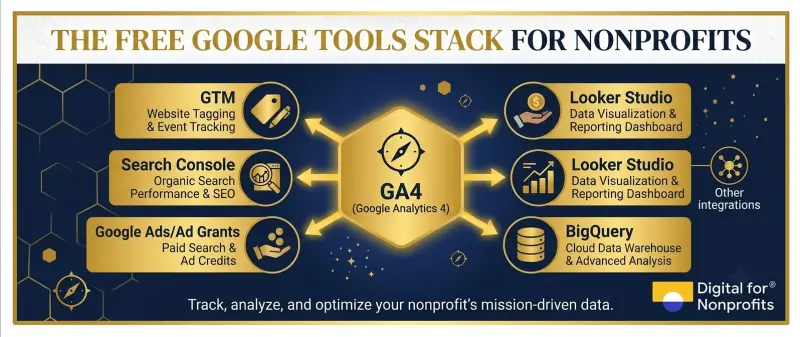
You Have the Tools. Now Use Them.
GA4 is not complicated. It is unfamiliar, and that is a different thing entirely.
Every nonprofit in the world that uses Google's tools has access to the same free analytics infrastructure: GA4, Google Tag Manager, Google Search Console, Looker Studio, and Google Ads. The organizations that use these tools well do not have bigger budgets or more technical staff. They have a clear setup, a monthly review habit, and someone who owns the data.
You can build that in your organization starting today. Create the property. Mark your first Key Event. Link Search Console. Schedule a Looker Studio report. Then look at the data every month and ask one question: what does this tell us that we should do differently?
That is what self-reliance looks like in the digital age. And it starts with knowing what is actually happening on your website.
If you want support setting up GA4 as part of a broader digital maturity strategy for your nonprofit, D4NP works with organizations globally to activate tech grants, implement digital tools, and build the internal capacity to use them well. Take our free tech assessment to see where your organization stands.